Atlas / tournament documentation
Students
A competitor's path: getting an entry, checking in, finding the room, reading results and judge feedback, and raising a problem with the tab room.
A student is a competitor with an entry in a tournament. Most students are registered by a coach or a guardian and claim the entry from a link; a student can also register themself. Everything a student needs during the tournament is on the tournament page, which shows their own section above the public one once they are signed in.
Get an entry
- Registered by a coach or guardian. Open the claim link they send. Sign in, or create an account, with the email they entered for you, then select Claim my registration. The page says the entry is finalized when whoever registered you completes checkout. A link that is invalid or expired says so; ask for a new one.
- Registering yourself. Create an account, open the tournament page, select Register an entry, then Start registration. Add yourself with your own email; you are added at once, with no claim link. Then check out. See Coaches for the cart. After every checkout, whoever checked out gets a confirmation email headed Your registration is in.
- A family league. If the tournament takes only member families, see Families and guardians. A student the league listed with their own email needs no family code when entering themself with that email.
Once you have claimed an entry, the top of the tournament page says where it stands: Claimed, waiting on the name of whoever registered you and their checkout, then You're entered once they check out. It names the event and your partner, for example Public Forum with Sam Lee, and the fee, such as $40.00 due, paid by Pat Kim, or no fee.
Your tournament page
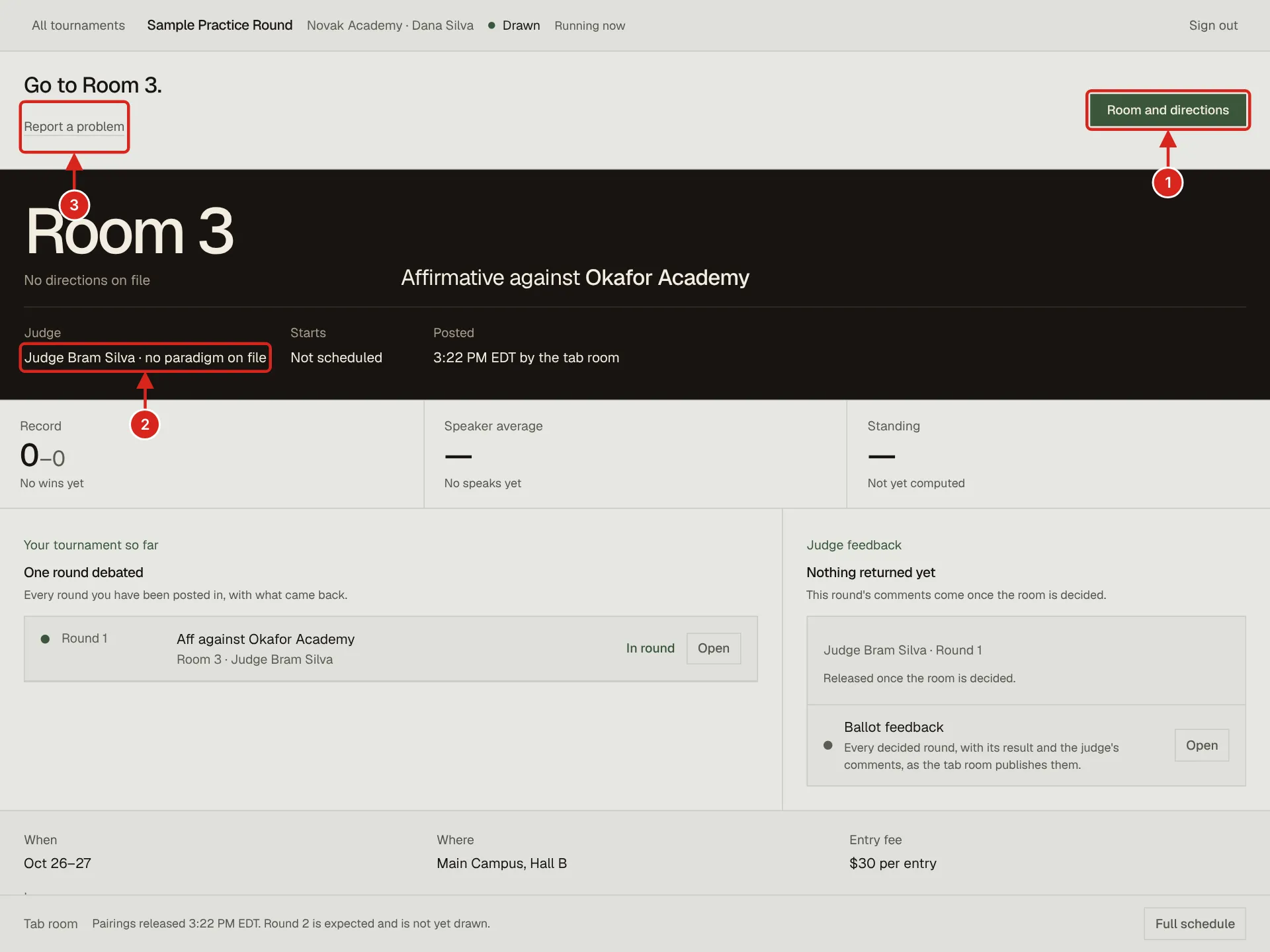
- 1. Room and directions: the room, and for an online round the meeting link.
- 2. Your judge, or every judge on a panel. When the judge has written a paradigm, the line reads paradigm filed and a Judge paradigm button opens how they say they decide a round. Here it reads no paradigm on file.
- 3. Report a problem sends the tab room a note with your room named, for something wrong right now.
Signed in with an entry, the tournament page opens with Your tournament: your next or current round, your record, and what to do now. Below it is the same page any visitor sees: the schedule, released rounds, standings when published, and the bracket.
| Part | What it shows |
|---|---|
| Your round | Room, side, opponent and judge, or every judge on a panel, once the tab room releases the draw. Before that it says they appear the moment the draw is released, and that you will be notified. |
| Checked in | Yes with the time, Not yet with a check-in control when self check-in is open, or Not at the desk. |
| Room links | Join the meeting for an online round once its link is set, Room and directions, and Report a problem. Before the judge or the tab room sets the link, Join the meeting is not offered, and the room page reads No meeting link yet. |
| Record and speaks | Wins, losses and speaker average, as far as the tab room has published them. Withheld items say so. |
| Ballot feedback | Each decided round with its result and the judge's comments, when the tournament publishes them. |
What you see, and when
| What | When it appears |
|---|---|
| Your room, side, opponent and judge, or every judge on a panel | The moment the tab room releases the round. A draft is never shown. |
| The result of a round | When the judge submits the ballot, or the tab desk enters it. |
| Your speaker points and the judge's comments | When the tab room publishes them for that round. Until then the page says they are withheld, and when they will come. |
| Your standing | Once standings are published. Before that it reads Not yet computed. |
| The bracket | When the break is released. |
On the waitlist, the page says You are on the waitlist. You will be drawn only if a place opens, and we will email you if it does. It promises no room, side or round, and offers no check-in. Rounds left reads None unless a place opens. Before the tab room sets the tournament's rounds, the page reads Rounds not set yet.
A judge's speaker comments are private to the speaker. The reason for decision is shared with both teams and their coaches. The public page shows results and published speaker points, never ballots or comments.
On the day
- Check in. In person, at the desk. On an online tournament that allows it, select Check in on your tournament page.
- When the round is released, read your room, side, opponent and judge. Read the judge's paradigm if they wrote one.
- Go to the room. For an online round, select Join the meeting; the room page also holds the round's chat and evidence. With no link yet, Join meeting on the room page opens a box that says the link is not set and that the judge or the tab room adds it. A competitor cannot set the link.
- Debate. If something goes wrong in the room, use Ping Tab for Help on the room page.
- After the round, the result appears when the judge submits. Speaker points and comments appear when the tab room publishes them.
Raising a problem
| Problem | Where | What happens |
|---|---|---|
| Something wrong in the room now: a missing judge, a broken link, a safety concern | Ping Tab for Help on the room page | The tab room sees it on their console with your room named. |
| Your judge has a conflict with you, such as your school, a club or family | Report a conflict on the room page | Staff review it. It is not a way to ask for a different judge. |
| The recorded result looks wrong | Question this result on your round's page, once a result is recorded | A private dispute goes to the tab desk, one per round. The tile shows its status and the ruling. See Disputes. |
| A round whose time you agree with the other side, on tournaments that use scheduling | Time Scheduler on the room page | Propose a time, the other side accepts, or escalate to the tab room. |
On a long-form online round you can also nominate one of the tournament's judges for your round from the room page. Staff review it; it is a preference, not a booking.
After the tournament
Your results and the judges' comments stay on the tournament page and on the Ballot feedback page, linked from the tournament page, which also charts your speaker points round by round when they are released.