Atlas / tournament documentation
Judges and justices
A judge's path from sign-up or invitation to a submitted ballot, including the moot court justice's ballot.
This page is for the person judging. In moot court the judges sit as justices and use the same pages. Most screens call them judges. A moot court ballot names the sides Petitioner and Respondent, and judge home names the seat the tab room picked for a round, such as Chief Justice. The director's side of the judge pool is on Judges and Judge sign-up and invites.
Get onto the roster
Every judge needs a Meridian account. There are two ways in.
- You sign up. Open the tournament's judge page, linked as Judge at this tournament on the tournament's page in the tournament directory. Sign in or create an account and save your judge profile. Fill School or club you judge for, typed the way your school's entries are registered so the allocator keeps you out of their rooms, or leave it blank if you judge for none. Then select Register for this tournament. Only the tournament can change the school afterwards.
- You are invited. The director adds you and an email titled You're invited to judge the tournament arrives. Select Claim my account, set up or sign in to the account, and on your judge page select Accept the invitation. Accepting shares your email and phone with the organizers. You are seated only after you accept.
The judge profile holds your name, email, phone, experience, years judging, specializations, bio and qualifications. It is saved once and reused at every tournament you judge.
Finish your steps
Your judge page opens with one line saying where you stand, and under it the steps that are left, on one form with one button. You can finish them while you wait for approval.
- Safety and conduct statement. Read the statement and tick I formally affirm and acknowledge these requirements.
- Tournament orientation. Read the tournament's orientation and tick I completed the orientation.
- Select the button under them, such as Affirm and finish orientation. A place the director made for you is accepted in the same step.
- Judge training. When the tournament runs live training, once it approves you your judge page, judge home and your invitation email show Judge training with when it runs and a Join training button until your orientation is recorded. Attend once. Your ballots are refused until the tournament records your orientation; save a draft meanwhile, and the tab room can still enter a ballot for you.
- Approval. The tournament approves each judge who signs up. The page reads Your steps are done. The tournament can assign you rounds once it approves you. A judge the director adds is approved when added.
When all are done the page reads You're confirmed to judge this tournament, with Go to judge home.
Judge home
Judge home is your desk for the tournament. It leads with what you owe right now. Your profile sits at the foot of the page, because nothing there is waiting on you.
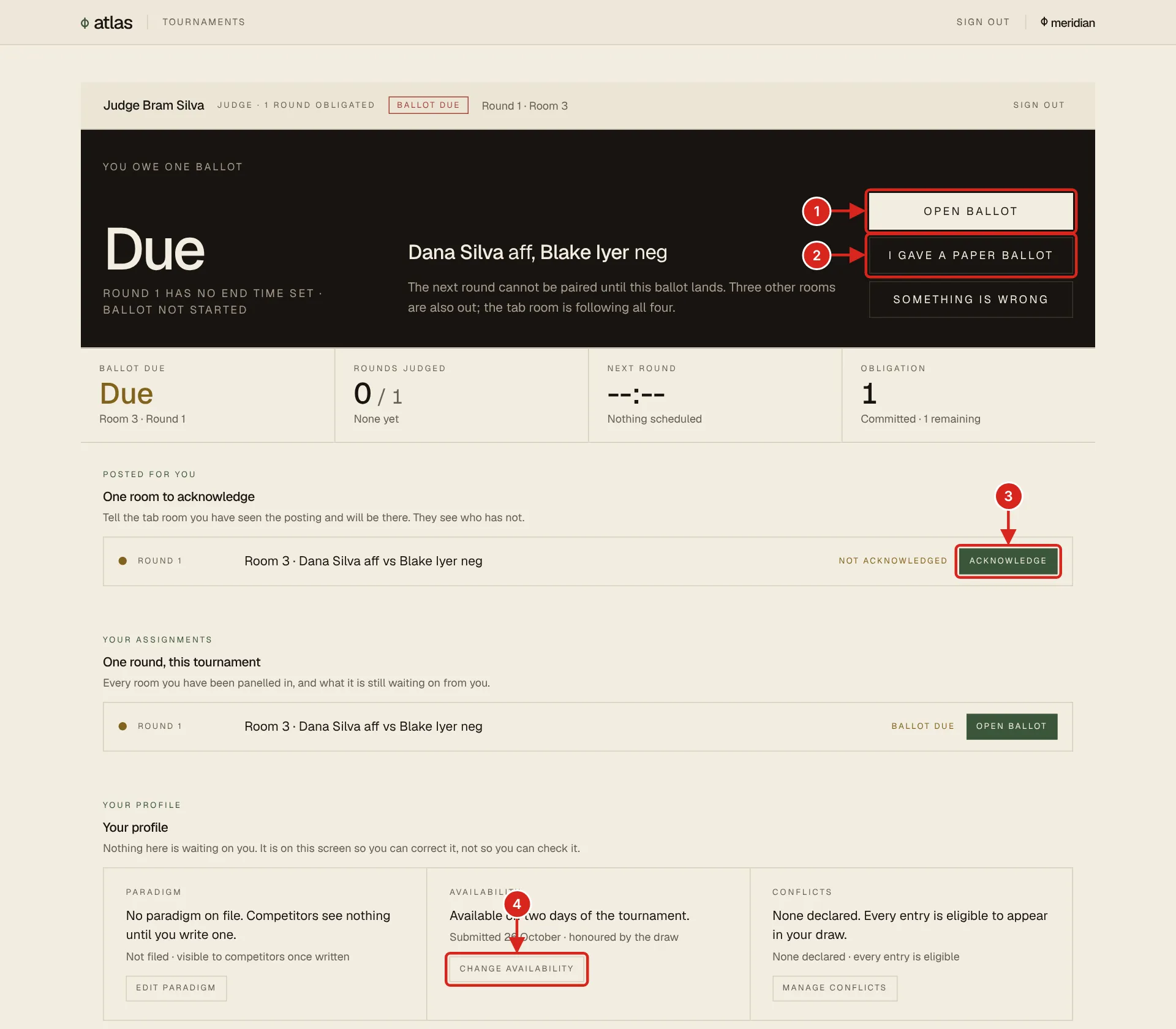
- 1. Open ballot goes straight to the ballot for the room you owe.
- 2. I gave a paper ballot opens Contact the tab room on that ballot with the paper ballot already named, so you only press Send. The tab desk enters it for you.
- 3. Acknowledge tells the tab room you have seen your room and will be there. Their Overview lists the judges who have not.
- 4. Change, on the Availability row of Your profile. Paradigm and Conflicts sit beside it, each with its own link.
| Part | What it shows |
|---|---|
| The bar | The tournament's name and your state in a word, such as Ballot due, Room posted or Nothing due. |
| The line under it | The one thing you owe, with at most one button. With a ballot due it names the room and when it was due, and offers Open ballot, with I gave a paper ballot and Something is wrong under it. More than 15 minutes after the round's end time it says how many minutes late you are and what is waiting on the ballot. A released room you have not acknowledged reads You're on, with Acknowledge. With nothing due it says when your next round is, or, if you cannot be seated yet, the one step that is yours. |
| Since you last looked | Notices for you, such as the tab room asking you to answer a round, each with a link, and Mark all as read. |
| Your rounds | Every room you are seated in. Ballots you owe come first, marked at the edge, with their state, such as Due 13:58 or 20 min late, and Open ballot. A room still to acknowledge has Acknowledge on its row. Rooms you have judged follow, with View. |
| Figures | Rounds judged against the rounds you committed to, and Next round. |
| Your profile | Paradigm, Availability and Conflicts, each with what is on file and a link: Edit, Change and Manage. |
Each profile link opens its form on the same page:
| Form | What to do |
|---|---|
| Availability | Rounds first, then days, saved together with Save availability. Mark each round Available, Not available or No answer: you are not assigned to a round you mark Not available, and a round you mark Available puts you ahead of judges who did not answer. A round that has started cannot be changed here. If the tab room picked you for a round, the row says so and names your seat, such as Chief Justice. Then tick the days you can judge and set Max rounds per day. Until you save your days, the tab room treats you as free every day; saving only a round answer does not file them. If you cannot judge at all, save with every day unticked and you are not assigned automatically. |
| Conflicts | Add schools you are affiliated with or cannot judge, and specific competitors you cannot judge. The allocator keeps you out of their rooms. Tell the tab room about anything else. |
| Paradigm | How you evaluate a round: speed, argument style, flowing. Competitors read it before the round, and See what competitors see opens the page they read. Nothing shows until you write one. |
Judge a round
- When the round is released, your room appears on judge home. You are notified in the app, and the tab room can also email you your room with a link to its ballot.
- Go to the room. For an online round, the room page holds the meeting link.
- Select Open ballot on judge home. A printed ballot can carry a code to scan that opens the same ballot on a phone.
- Choose who won the round, and give the scores the ballot asks for: ranks, speaker points or category scores. A score outside its range is marked in red.
- Write the Reason for decision, which both teams and their coaches read, and the speaker comments, which are private to each speaker.
- Select Save draft to come back later; nothing is published. Select Submit ballot when it reads Ready to submit.
The ballot opens with the room, Round 1, Room 3, and one line: when the ballot is due, or how late it is, or that a draft is saved. The clock beside the matchup counts down to the round's end, reads Ballot due for the first 15 minutes after it, then counts how late the ballot is; it is not shown once your ballot is in. After submitting it reads Ballot submitted. To change it, open the ballot again: it says a ballot is on record and offers Resubmit ballot, which replaces the one on record. The tab room can also correct it from the ballot queue.
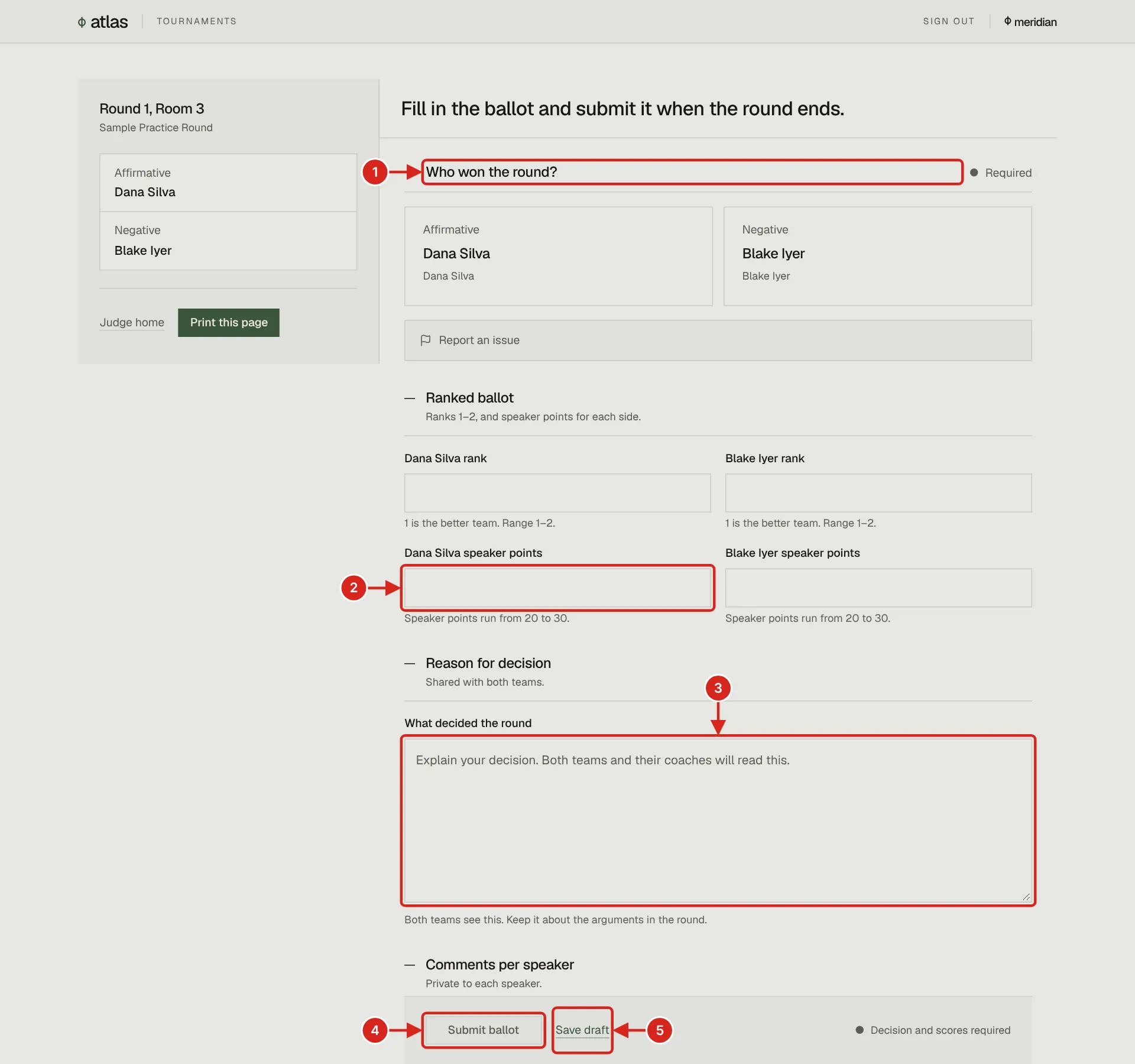
- 1. Who won the round? Select the side. It is required.
- 2. Speaker points for each competitor, from 20 to 30 on this tournament. This ballot also asks each competitor's rank, 1 for the better.
- 3. What decided the round. Both teams and their coaches read it.
- 4. Submit ballot. The line beside it says what is still required.
- 5. Save draft keeps what you have entered without sending it; nothing is published.
The moot court ballot
A justice scores each advocate in the ballot's categories rather than giving one number. The categories and their ranges come from the tournament's Setup. Each category shows its range under its name. Each score is typed into a box that marks an out-of-range score in red. When the tab room enters a ballot from paper, a range of ten steps or fewer, such as 1 to 10, is a single row of tap buttons instead.
| Preset | Categories, per advocate | How the side's total is made |
|---|---|---|
| Moot Court | Knowledge of Facts and Law, Response to Questions, Delivery and Decorum, Logical Argumentation, 50 to 100 each | Each advocate's four scores are averaged, and the side's total is the sum of its two advocates' averages. |
The ballot uses the court's words: the sides read Petitioner and Respondent in place of Affirmative and Negative, on the winner choice, the score rows and the speaker comments, and a printed ballot's signature line reads Justice signature.
How many of a courtroom's ballots count is the event's setting. Every ballot counts unless the tournament chose otherwise; under HSMCA's rules a prelim courtroom counts at most two ballots, and an outround an odd number. When a bench has more justices than ballots it counts, a random draw leaves the extra ballots uncounted. No justice is told whose, so complete yours as usual. The courtroom is decided once every counted ballot is in, so it can show a result before yours is submitted. A courtroom whose counted ballots split evenly goes to the tab desk, stays split with no winner, as HSMCA rules, or goes to the side with more points, as the event is set.
A justice who only clerks and times does not get a ballot. See Courtroom clerks. More on moot court tournaments is in Moot court and HSMCA.
When something goes wrong
| Situation | What to do |
|---|---|
| A forfeit, a no-show, or a room that never convened | Under Forfeit or no-show on the ballot, choose the forfeit. Scores are not collected; only the winner is. |
| You handed in a paper ballot | On judge home, select I gave a paper ballot in the band. It opens Contact the tab room on the ballot with the paper ballot named, and the tab desk enters it. |
| A missing competitor, a broken room, a conflict, a safety concern | Under Contact the tab room on the ballot page, select Write to the tab room. They see it with your room named. |
| You aren't the assigned judge of record for this room | The ballot belongs to another judge or the room changed. Go back to judge home. |
| Your availability changed | Update it on judge home and tell the tab room. To stop judging entirely, ask the tab room to withdraw you. |