Atlas / tournament documentation
Families and guardians
How a league's family roster works, how a family is recognized by its email or applies to join from the register page, how a guardian registers their students, pays, and follows them on the day.
Some leagues, such as homeschool leagues, enter students by family rather than by school. The league keeps a roster of member families, each with a family code, and a tournament can accept entries only from those families. This page is for guardians. The league's side is under Affiliation in Organization and account.
What the league sets up
- A family code for each family. The league issues it, usually by email. Codes are not case sensitive.
- The family's contact email, which counts as a guardian of the family.
- Members, each with their own email and a role of Student or Guardian.
- Only affiliated families may register. A switch on each tournament. When it is on, every competitor entry needs a family on the league's active roster.
Only the league's admins see the roster. A guardian sees their own family and no other.
Get ready
- Create an account with the email the league has for you, and confirm it from the email Atlas sends. A confirmed email is how Atlas knows you are the family's guardian.
- Make sure each student has their own email. One email holds one entry per event, as the entrant or as a team's partner. A family sharing one inbox can use plus addresses: you+kim@gmail.com reaches the same inbox and counts as its own email. Gmail, Outlook and iCloud all support this.
- Sign in with the email the league has for you. That email is how a families-only tournament knows your family, so no code is asked for.
Apply to join a league
A league that takes applications online has a join page. The league shares the link. When a tournament takes affiliated families only, its register page offers the same application under Your family, as New to the league's name, Apply to join, for an account no family matches yet. Applying there works as below, and the register page then shows the application's status with Withdraw; Pay dues opens the league's join page. Affiliation is for one season: a family applies again each season, and the same family and code carry over.
- Sign in with the email you use for the league, or create an account and confirm its email first. You apply as the family's guardian under that email.
- Under Apply, enter the family name and each member: their full name, their own email and Student or Guardian. List at least one student. Your own email is not listed again, and no member may share it.
- When the league has policies for competitors and guardians, such as a code of conduct or a child safety policy, each is listed under League policies. Open each one, then tick the box beside it to agree. Every box must be ticked to apply. The league keeps a record of which version you agreed to.
- Select Apply. When the league charges dues and collects them online, the button reads Apply and pay followed by the amount, and it opens the league's PayPal or Stripe page. When the league collects its own way, the page says so and the league records the payment once it has it.
- Your applications show on the same page with their status: Waiting for the league, Approved, Declined or Withdrawn, and the dues: No dues, the amount due, processing, or the amount paid with its date.
- While an application waits, or after an approval with the dues still owed, Pay dues opens the payment page again. Withdraw takes back an application that still waits. Paid dues cannot be withdrawn this way: ask the league to decline the application and refund you.
- The league emails you when it decides. An approval gives the family's code. From then on, signing in with a family email is enough to register without typing it.
- While your application waits, you can enter the people on it at the league's families-only tournaments, by the emails the application lists. Those entries wait in your cart, and Checkout stays off until the league approves your family; then check out and pay as usual. A decline or a withdrawal takes them out, and they are never charged. Waiting doesn't hold a spot if the tournament fills.
Your leagues
Your leagues lists each league family your confirmed email belongs to, as a guardian or as a student: whether the family is affiliated, the season, the dues with the date and amount paid, the members, the family code and links to the league's tournaments taking entries.
Register your students
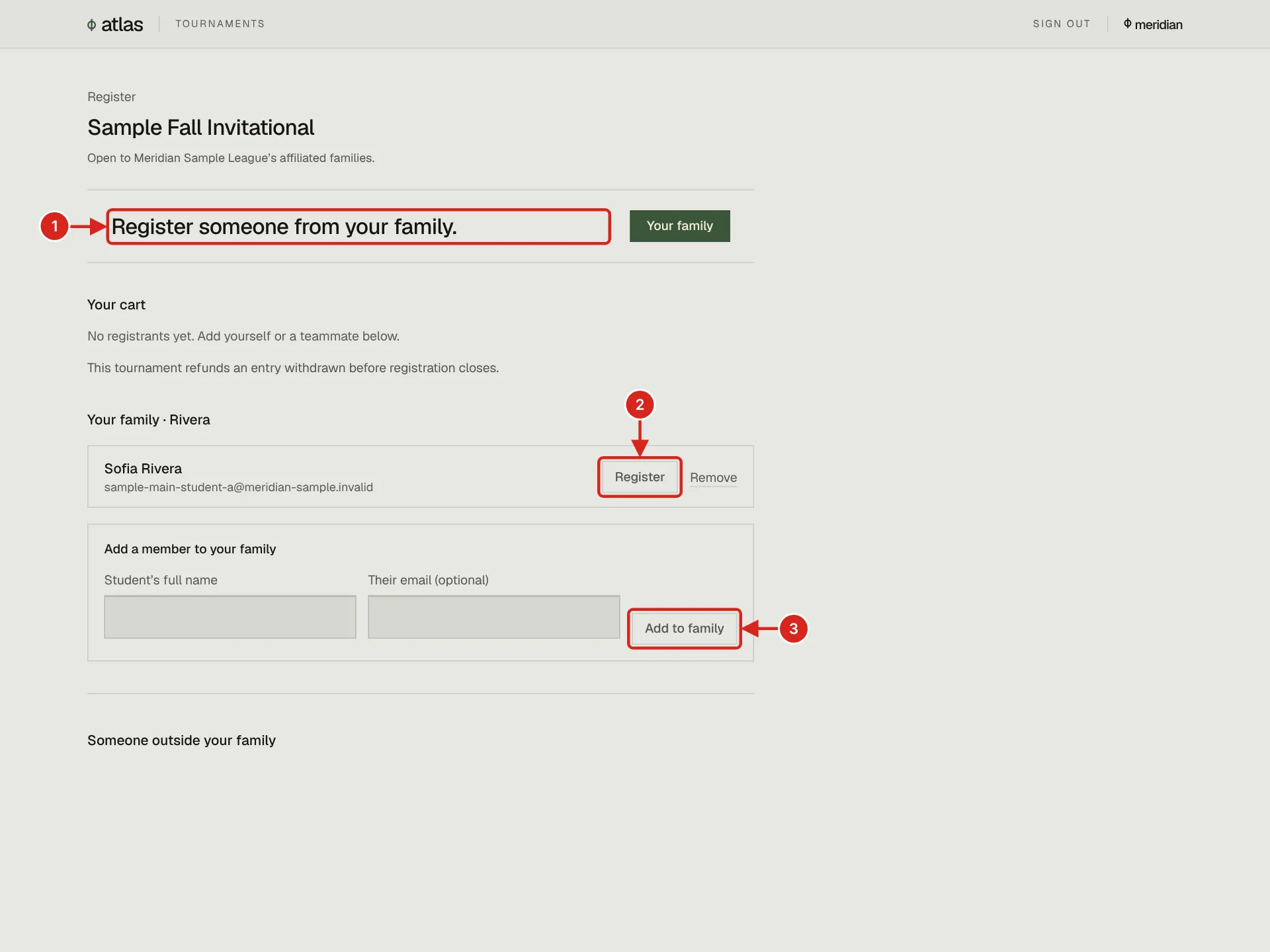
- 1. Your email is on the league's list, so the page leads with Register someone from your family, and no family code is asked for. The typed form is folded below, under Someone outside your family.
- 2. Register puts this student into the registration form, with the family attached, so no code is typed.
- 3. Add to family saves a new student to your family, for this tournament and every later one.
- Open the tournament page and select Register an entry, then Start registration.
- Signed in as a guardian of a league family, you see Your family followed by the family's name, with your family's students. The panel shows at every tournament of the league, whether or not the tournament takes affiliated families only. With an empty cart, the line under the tournament's name reads Register someone from your family, and its Your family button takes you to the panel. The hand-typed form is folded below it, under Someone outside your family.
- Select Register beside a student. The form's heading reads Register a family member, and it shows the student's name with From the family's name family, with your family code attached. You hold the entry, so you can check out straight away. No name, email or code is typed. Register someone else goes back to the empty form.
- Choose the event. A team-of-two event, such as moot court, is entered as one team with one fee: under Partner choose a second student of your family, or Someone outside your family and type their name and email. Registering one student alone in such an event is refused with This event is entered as a team of two. Choose a partner. Select Add registrant.
- To add a student who is not listed, use Add a member to your family: Student's full name and, if they have one, Their email, then Add to family. A family holds up to 30 members. You can remove a student you added; anyone else in the family is changed by the league.
- Repeat for each team or student, tick the one policy box for every entry in your cart, apply a promo code if you have one, and select Checkout.
A team of two enters both students
- A team-of-two entry is one entry that holds both students, with one fee. The partner is entered the moment you check out, so the partner's family does not register them again and there is no second registration to wait for.
- A partner you typed in, under Someone outside your family, is entered with the team as the name and email you gave. The league sees them on its Registrations screen under the first student, with their roster family when they are on the league's roster.
- If the student you name as partner already has an entry in that event, adding the team is refused with the student's email followed by already has an entry in and the event's name. Ask the league, or choose another partner.
- The partner's email counts as an entry in the event. If the partner, or anyone else, later registers under the email you typed for them, as an entrant or as another team's partner, it is refused, naming that person or email, followed by already has an entry in and the event's name. The same is checked again at checkout, and a second team in your own cart that names the same partner is refused as already in your cart. A partner you chose from your own family is tied to the entry, so a second entry for that student is refused under any email.
- A student of your own family counts as that student even when you type their name in the form below the family panel, under any email, so the same team cannot be entered once from the family panel and again by hand. Only your own family is matched by name. A partner from outside your family who registers under a different email is not stopped, because a name alone is never matched across families. The league sees Also in another entry on Registrations and can drop one of them.
- A team needs two different people: a partner with the same name or email as the student is refused.
A student with no email
- A student with no email can be registered. The entry goes under your own address, so their rooms and round mail come to you.
- For a student you added, the line under their name reads No email on file. You can register them under yours, or add theirs here so they get their own rooms. Type the email beside them and select Add email. An email is added once; to change it later, ask the league.
- For a student the league listed, the line reads No email on file. You can register them under yours; ask your league to add theirs.
- A student already entered in the tournament reads Entered in and the event's name, or Waitlisted, where Register was.
An entry you register for your own family is yours to hold: there is no claim link, and Checkout opens as soon as the policy box is ticked. A student with an email gets their room by mail and, signed in with that email, sees the entry on the register page. See Coaches for the cart in detail; a guardian registering their own students uses the same cart.
When the register page doesn't know your email
At a tournament that takes affiliated families only, an account whose confirmed email is on none of the league's families sees Your family: the league's name knows families by the email it has on file, followed by the email you are signed in with.
- Find my family. Type your family's last name, or a parent's or student's full name, under Family name and select Email me a sign-in link. When exactly one family of the league matches, Atlas emails a sign-in link to the address the league has for it: the family's contact, or the guardian, or the student the league listed, whose full name you typed. The page never shows that address, and it reads the same whether or not a family matched, unless the name leads to the very email you are signed in with. Open the link on the same device to come back to the register page signed in with that email and recognized. An address with no account yet gets the sign-up page instead: make the account with that same email, confirm it, and come back. Find my family needs your own email confirmed first.
- Sign in with a different email signs you out and opens the sign-in page, which brings you back here.
- New to the league? Apply to join opens the league's application in place, when the league takes applications on the website. When it does not, the line asks you to have the league add your family.
- Find my family takes five tries an hour per account, and sends one address three links a day at most.
The family code
- An account the list matches sees Registering for the family's name, Your email is on the league's list, so no code is needed, and no code field.
- A student entering themself with the email the league listed for them needs no code either. The line says so, and Entering someone else? Family code opens the field for an entry under another email. Adding someone else without it reads Your email matches your family for your own entry only. Enter the family code to add someone else.
- Anyone else finds the code field behind Have a family code?, above the competitor's name. A competitor entry with no code and no match reads Your email isn't on your league's list. Find your family or apply to join above, or enter a family code. When the league takes no applications on the website, it leaves out applying and gives the league's contact email instead.
- An email on more than one family in the league is not matched, so it needs the code.
- A wrong code reads That family code isn't on your league's list. Check it, or ask your league for it. under the field, and the form keeps the event, the partner, the answers and everything else typed. Check the code with the league. After 30 tries in 10 minutes the form asks you to wait.
- A code typed by mistake is never replaced by your email match: fix the code or clear it.
How the league knows your family
- The league keeps a roster of families on its Families page. Each family has a code, a name, a contact email and its members: guardians and students, each with their own email.
- When you sign in, Atlas looks for your account's confirmed email on that list. An email typed into the form never counts, and neither does an account whose email is not yet confirmed. The family's contact email and each guardian's email are guardian emails. A match shows you the Your family panel for that one family, and only that family.
- A tournament that admits only affiliated families checks every competitor entry against the list. A matched email, or the family's code, lets the entry through. A family the league has deactivated is not accepted until it is reactivated.
- Only the league's admins see the whole list. A guardian sees their own family and no other, so a code is learned from the league.
Pay the entry fee
Whoever checks out pays for the entries in their cart. If the league collects online, checkout opens the payment page of the league's provider, Stripe or PayPal. If not, the register page says the league collects the fee and gives its contact email, and the fee stays due until the league records it. A promo code that covers the whole fee means nothing is charged. When there is a fee, the cart states the tournament's refund rule under your entries before you check out: refunds for an entry withdrawn before registration closes, or refunds by hand only. While Checkout cannot be pressed, the cart says what it waits on, such as Waiting for the league to approve your family. Check out once it does. After a refund, the entry's status shows what came back, for example Refunded $15.00 on Oct 30. A confirmation email headed Your registration is in follows every checkout. See Payments.
Follow your students on the day
- Your family's rounds. On the tournament's register page, a guardian of the family sees Your family's rounds once a round is released: for each student's entry, the round, the side and the opponent with their school, the start time with the zone named, and the room. Join the meeting opens an online room's link, and Open the room opens the room page, where you are named as family. It is read only: you watch, and never check in or submit for your student.
- The tournament page. Select Follow an entry and pick your student. Followed entries move to the top of the page with their room, side and result. The choice is kept in this browser only and never sent anywhere, and shows nothing that is not already public.
- What is not public. Ballots and judge comments are not on the public page; your student sees their own on their page. A round's speaker points are public unless the tournament set that round to show the winner only.
- Email from the tournament. A director can send a notice to Coaches & parents, which reaches every account that registered an entry for someone else.
- Watching a room. A parent watches a debate as an observer. See Spectators and observers.