Atlas / tournament documentation
Payments
How entry fees are priced and paid: the fee, promo codes, family codes, checkout through Stripe or PayPal, statuses, refunds, settling by hand, and how a league connects its payment account.
A tournament's entry fee is set in Setup. The registrant pays it online at checkout when the league collects online, or the organizer collects it and marks it paid on Registration and field. Each league collects online through one payment provider: Stripe Connect, the default, or PayPal. Everything on this page works the same with either provider unless a row says otherwise.
How an entry's fee is worked out
- Fee per entry. Set by a full admin in Setup, Registration. A fee of zero means there is nothing to pay and the entry is Paid at checkout with zero recorded.
- Price changes. Also in Setup, Registration, under Fee per entry: from each date and time listed, the fee becomes that row's amount, until the next change. Checkout charges the fee in effect when the cart checks out, so an entry made before a change keeps its price. The register page names the next change.
- Family code. When Only affiliated families may register is on, each competitor entry needs a family on the league's active roster, kept on its Affiliation page: the registrant's email on the family's list, or the family's code. That decides who may enter. It does not change the price.
- Promo code. Typed in the cart before checkout. Percent off takes a share of the fee, Amount off takes dollars off, never more than the fee. Checkout checks the code again, so a code turned off in the meantime is refused there too.
- Checkout. Writes each entry with its fee due, which is the fee less any discount. An entry that owes nothing is Paid at once. An entry that joins a full field with the waitlist on is Not due until it is promoted.
- Payment page. When the league collects online and something is owed, checkout sends the registrant to Stripe or PayPal for the total of the entries that owe. Each entry is charged at its own fee due. Up to 100 entries are paid on one page; a larger cart pays the rest with Pay now.
What a registrant sees
| Moment | With Stripe | With PayPal |
|---|---|---|
| Checkout or Pay now | Stripe's card page, in Meridian's name. The money then goes to the league. | PayPal's page, in the league's name. The payer logs in to PayPal or pays by card where PayPal offers it. |
| Back on the register page | Payment sent. Your entries show as paid once Stripe confirms it. | Payment sent. Your entries show as paid once PayPal confirms it. Meridian takes the payment as the payer returns, so it is usually Paid on the first reload. |
| Cancelled on the payment page | Payment cancelled. Your entries are registered and their fee is still due. | The same line. |
| Payment refused | Stripe shows the reason on its own page. | The register page shows PayPal declined the payment method. Pay now again and choose another. Or: PayPal did not complete the payment. Pay now again to retry. |
| Fee still owed later | N entries owe the total in fees, with Pay now. | The same line and button. |
| League not connected | The line that the league collects this fee, with its contact email, or a link to its page when it has none, and no Pay now. | The same line. |
Entries are registered whatever happens on the payment page. A page that fails to open, a cancel or a refusal leaves them registered with the fee due, and Pay now opens a fresh page for everything still owed. Once Stripe or PayPal confirms a payment, Meridian emails one receipt to the payer's account address. It names the tournament, each entry paid for, the amount and currency, the date, Stripe or PayPal and its payment reference, the tournament's refund rule, and links to the payer's entries. It goes once per payment, even when the confirmation arrives twice. A checkout with nothing due and an entry a director marks paid by hand get no receipt. A receipt that fails to send never undoes the payment.
| Message on the register page | Meaning | What to do |
|---|---|---|
| The payment page could not open. Try Pay now again in a minute. | Stripe or PayPal did not answer. | Wait and press Pay now. |
| Another payment page for these entries opened at the same time. Reload the page and pay from there. | Pay now was pressed twice at once. | Reload and pay once. |
| Your entries changed while the PayPal page was open, so nothing was charged. Pay now again. | A director settled, waived or repriced one of the entries before the payer approved. | Press Pay now for what is still owed. |
| This league's PayPal account changed while the payment page was open, so nothing was charged. Pay now again. | Meridian changed the league's PayPal account meanwhile. | Press Pay now. |
| Nothing is due online for your entries. | Pay now found nothing owed. | Nothing. |
| Your last payment went through. Your entries show as paid once Stripe confirms it, usually within a minute. | A Stripe payment is being recorded. | Reload in a minute. |
| Your last payment is still processing with your bank. Your entries show as paid once it clears. | The bank has not cleared a Stripe payment. | Wait for it to clear. |
| Nothing was charged for that PayPal page. If a fee still shows as due, use Pay now. | The PayPal page was replaced by a newer Pay now, settled by hand, or dropped after hours unused. | Press Pay now if a fee still shows as due. |
| PayPal did not confirm the payment yet, so do not pay again. Your entries are registered; they read Paid once PayPal confirms, usually within minutes. If they still owe in an hour, contact the organizer. | PayPal has not finished the payment it was asked to take. The entries stay registered and read Paid once PayPal confirms it. | Do not pay again. If the entries still owe after an hour, contact the organizer. |
| PayPal could not complete the payment. Your entries are registered and their fee is still due; try Pay now again in a minute. | Nothing was charged. | Wait a minute and press Pay now. |
Payment statuses
The statuses are the same for both providers: Pending, Paid, Failed, Refunded, Not due and Waived. Their full meanings are in Registration and field. Pending entries count as outstanding in the Field rail, the closeout packet and Finalize, whichever way they will be paid.
| Event | Status afterwards |
|---|---|
| Checkout with a fee due | Pending |
| Checkout with nothing due, including a 100 percent code | Paid, zero recorded |
| Checkout into a full field with the waitlist on | Not due |
| Promoted off the waitlist | Pending, and the registrant is told |
| Stripe or PayPal confirms the payment | Paid, with the amount recorded per entry. The payer is emailed a receipt. |
| PayPal holds the payment for review | Stays Pending until PayPal clears it, then Paid. If PayPal refuses it, it owes again. |
| Refund in Field | Refunded |
| Bypass the gates on a hand added entry | Waived |
A director can turn on the pending payment reminder on Announce, Emails. It goes once to each active entry still Pending after the hours set, with either provider. See Announce.
Settling and refunding
- Marking paid by hand. For money taken outside Meridian, such as cash or a check. Doing it closes the entry's open Stripe page; an open PayPal page is never charged afterwards, because Meridian takes a PayPal payment only while every entry it was opened for still owes it.
- A payment in progress. If Stripe or PayPal is still clearing a payment, the change is refused until it is recorded, so an entry is never both settled by hand and charged. For a PayPal payment marked pending, Meridian asks PayPal first: a payment PayPal finished is recorded as Paid, and one it declined owes again.
- Refund rule. When the fee is above zero, the cart states the tournament's Refunds choice from Setup under the entries, before checkout. It is the same sentence the coach's Withdraw panel shows. It only informs: no refund is paid automatically.
- Refund. A full admin's control in the entry panel. For a Stripe or PayPal payment it returns that entry's own fee through the account that took it, even when the payer paid several entries at once. Meridian's fee, if the league has one, is returned in proportion. A Stripe refund that gets no answer can be retried safely: the retry finds the first refund instead of sending a second. A PayPal refund that gets no answer is sent again for you; if PayPal still does not answer, the entry reads Refunded so it cannot be refunded twice, and the message asks you to check the payment in PayPal and set it back to Paid by hand if nothing was refunded. A refund PayPal refuses leaves the entry as it was, and Refund can be tried again.
- Refunds made in PayPal. A refund or reversal made in the league's PayPal account, outside Meridian, marks the entries it covers as Refunded once PayPal reports it. A partial refund of a payment for several entries is not matched to an entry: record it by hand.
- The Refunded chip. Only for payments made outside Stripe and PayPal. On an online payment the chip is hidden and the action refuses it, because it would change the record without returning any money.
- A refunded entry at Finalize. An entry refunded while it is still active does not block Finalize for good. The Finalize checklist on Records lists it with two choices: keep it in the results, which leaves the payment Refunded and counts it as settled, or drop it. Neither choice moves any money. See Results and closeout.
- After the event. Once the tournament's end date has passed in its time zone, or once it is finalized, only an owner of the league or a Meridian head admin can refund, mark an entry Refunded or reverse a refund. They refund through the Refund section with a reason, and Records lists it as Fee refunded after the event, with that reason. The Refunded chip is hidden then. Any other admin, a finance seat included, sees a line in place of the Refund section saying who can refund now, and the server and the database refuse the change besides. A refund recorded from Stripe or PayPal is still marked whenever it arrives.
Connecting a league to Stripe
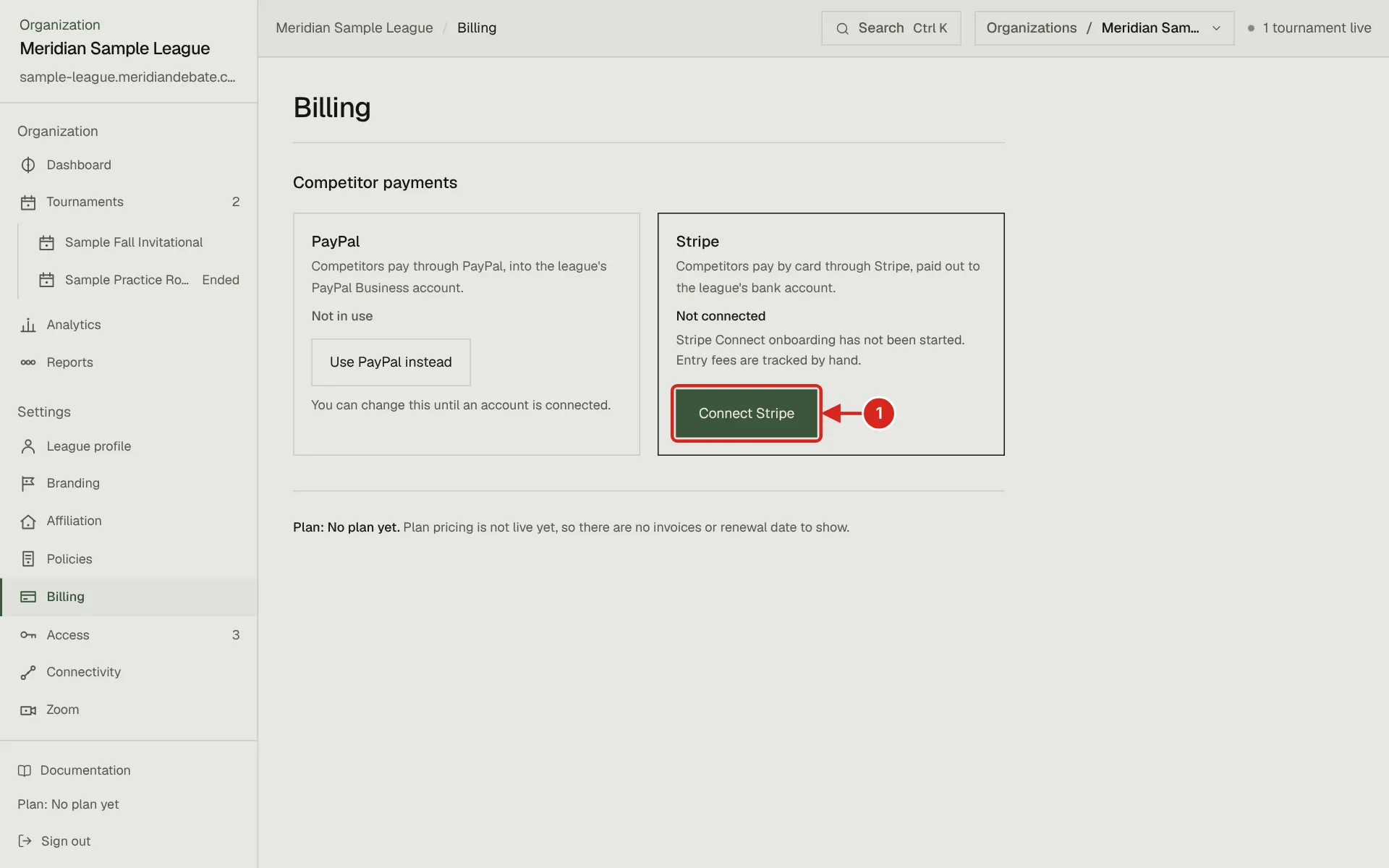
- 1. Connect Stripe starts Stripe's own onboarding for the league. Until it is finished, Competitor payments reads Not connected and entry fees are tracked by hand on Field. Use PayPal instead, on the PayPal card beside it, switches the league to PayPal until an account is connected.
The default for every league. A league owner or admin opens Billing or the wizard's Payments step and selects Connect Stripe. Stripe's onboarding asks for the league's business and bank details. Billing reads Connected once Stripe allows the account to take card payments and its transfers are active, which is when payments can reach the league. Stripe's onboarding returns the admin to where Connect Stripe was selected, the league console or the wizard's Payments step, and that page asks Stripe for the account straight away, so the status usually reads Connected on return. Until then fees are collected by hand. The statuses are listed in Organization and account.
With Stripe, Meridian's platform account opens each payment page and Stripe sends the money to the league's connected account. Meridian's fee, when one is set for the league, is kept out of each payment. Stripe's processing fee is charged to Meridian, not the league. When a payment comes in, Meridian saves the fees Stripe reported for it, and league Analytics shows them under Net after fees. Because Meridian's account takes the payment, the payer's card statement shows Meridian's name. The payer gets Meridian's emailed receipt, and Stripe's own receipt where Stripe sends one.
Billing shows PayPal and Stripe side by side, each with the same weight. The one the league uses says where its account stands and how to connect it. The other reads Not in use. Until an account is connected on either, a league owner, admin or the finance role selects Use PayPal instead or Use Stripe instead there; after that, the Meridian team switches the league.
Going live with Stripe
Before a league's first real entry fee, Meridian turns on live payments for the platform. The league then does the rest:
- A league owner or admin selects Connect Stripe on Billing and finishes Stripe's onboarding with the league's business details and the bank account fees should be paid into. A league's Stripe account is opened in the same country as Meridian's, the United States, so the league needs US business and bank details.
- Back on the league console, check that Competitor payments reads Connected there or on Billing. Onboarding in progress means Stripe is still verifying. Action required means Stripe needs more from the league: select Connect Stripe again to continue where you left off.
- Make one small real payment, for example a test entry on a tournament with a low fee. Check that the entry reads Paid on Registration and field and that Meridian's receipt reached the payer's address.
- Refund it from Field, Registrations: open the entry, write a Reason in its Refund section and select Refund. Check that the entry reads Refunded.
Connecting a league to PayPal
A league owner, admin or the finance role picks PayPal or Stripe on Billing or Connectivity while neither has been started. Once either has, only a Meridian head admin switches the league, from a Switch this league button on the same Billing card. The switch is refused while any registrant of the league is part way through a payment, and every change is written to the organization's admin log. Switching back to Stripe needs no new onboarding: the league's Stripe account is kept.
A payment page a registrant opened and left for three hours or more no longer counts as part way through. When the switch is tried, Meridian closes such Stripe and PayPal pages first. A key change closes only such PayPal pages. Nothing is charged for a closed page, and its entries owe again, so Pay now opens a fresh page. A payment PayPal is still taking is never dropped this way.
There are two ways to connect PayPal once a league is on it:
| League's own PayPal Business keys | PayPal sign-up through Meridian | |
|---|---|---|
| Best for | A league that already runs PayPal Business, such as HSMCA. | A league without PayPal Business, once PayPal has approved Meridian as a partner platform. |
| Who does it | A league owner or admin, from Billing. Meridian can also save the keys for the league. | A league admin, from Billing. |
| What is shared | The client ID and secret of a REST app in the league's PayPal developer dashboard. The secret is stored encrypted and never shown again. | Nothing. The league logs in to PayPal and grants Meridian permission. |
| Meridian's fee | None taken at checkout. Any fee is billed separately. | Taken from each payment automatically. |
| PayPal's fee | Charged to the league. | Charged to the league. |
When PayPal completes a payment, Meridian saves PayPal's fee, Meridian's platform fee and what the league received, as PayPal reported them, and league Analytics shows them under Net after fees. A payment PayPal holds as pending has its fees saved once PayPal completes it. A refund does not change the saved fees.
Connect with the league's own keys.
- A league owner or admin selects Use PayPal instead on Billing, or Meridian switches the league to PayPal.
- The league creates or opens a REST app at developer.paypal.com, under Apps & Credentials, in Live mode with the Merchant type, and copies its Client ID and Secret.
- A league owner or admin pastes them under Your PayPal keys on Billing and selects Save keys. Meridian checks them with PayPal, adds its webhook to the app and stores the secret encrypted, so the keys never travel by email. Billing then reads Connected.
- Make one small live payment and refund it to confirm the round trip.
Replace keys and Remove keys are refused while a registrant is part way through a PayPal payment. Removing keys sets the league back to collecting by hand. A payment taken under keys that were later replaced is refunded in PayPal directly; Meridian says so instead of refunding through the wrong account.
Connect through PayPal's sign-up. A league admin opens Billing or the wizard's Payments step and selects Connect PayPal. PayPal's own page asks the league to log in or create a business account, confirm its email and grant Meridian permission, then returns the admin to the page they started on, which asks PayPal for the account. Billing reads Connected once PayPal reports the account can take payments.
A tournament's Setup shows the same state under the fee, in Registration's Access & fees: that fees are paid online through the league's provider, or that the league has not connected it yet, with a link to Billing for the league's own admins.
| Billing status | Meaning |
|---|---|
| Not connected | No PayPal account yet. Fees are collected by hand. |
| Onboarding in progress | PayPal sign-up has started but is not finished, the email is not confirmed or permission was not granted. |
| Connected | Ready to collect fees through PayPal. |
| Action required | PayPal says the account cannot take payments yet. Resolve it in PayPal. |
Messages for admins
| Message | Where | What to do |
|---|---|---|
| This league has registrants part way through a payment. Wait for those to finish or settle them by hand, then switch. A payment page left unfinished stops counting after three hours. | Payment provider switch | Wait or settle the entries, then switch. |
| A registrant is part way through a PayPal payment. Wait for it to finish or settle it by hand, then change the keys. A payment page left unfinished stops counting after three hours. | League's own PayPal keys | Wait, then save again. |
| A registrant is part way through a PayPal payment. Wait for it to finish or settle it by hand, then remove the keys. A payment page left unfinished stops counting after three hours. | League's own PayPal keys | Wait, then remove them again. |
| PayPal did not accept those keys for live. | League's own PayPal keys | Check the pair is the Live client ID and secret from the same app. |
| The keys work, but PayPal would not add Meridian's webhook to the league's app. | League's own PayPal keys | Remove an unused webhook from the app in PayPal, which allows ten, then save again. |
| This deployment takes Live PayPal keys only. | League's own PayPal keys | Use the Live pair on the production site. |
| An owner or admin of your league connects its PayPal Business account here. | Billing, for a Settings only seat on a PayPal league | Ask an owner or admin of the league to save the keys. |
| Only an owner or admin of this league can change its PayPal keys. | Your PayPal keys on Billing | Ask an owner or admin of the league. |
| This tournament has ended, so refunds are now made by the league's owner or a Meridian head admin. | Refund section and the payment chips, after the event's end date | Ask the league's owner or the Meridian team. |
| This tournament is finalized, so refunds are now made by the league's owner or a Meridian head admin. | Refund section and the payment chips, after Finalize | Ask the league's owner or the Meridian team. |
| After the event, a refund needs a reason. Use Refund below. | The Refunded chip, for a head admin after the event | Use the Refund section and type the reason. |
Who can do what
| Action | Who |
|---|---|
| Set the fee, refund policy and promo codes | A full tournament admin |
| Mark a payment Paid, Pending or Failed by hand | Any tournament admin, including a tab seat |
| Mark Refunded by hand, reverse a refund, Refund | A full tournament admin or a finance seat, until the event is over |
| The same, after the event's end date or Finalize | An owner of the league or a Meridian head admin, with a reason for a refund |
| Connect Stripe, or PayPal through its sign-up | An organization owner or admin |
| Save or remove a league's PayPal keys | An organization owner or admin, or Meridian |
| Choose Stripe or PayPal for a league | Meridian only |
| Pay | Whoever checked out the cart, usually the coach or guardian |