Atlas / tournament documentation
Judge sign-up and invites
Every way a judge joins a tournament, from both sides: open sign-up with approval, adding a judge by hand, inviting a judge to named rounds, and nominations.
A tournament's judges come in by one of five routes. Each ends in the same place: a judge on the roster who has accepted, finished the safety affirmation and the orientation, and been approved. Only then can the judge be seated. Available days and round answers narrow which rounds they are given; a judge who has answered nothing is treated as free for every round, and one who saved availability with no day ticked is not seated automatically. The steps themselves are in Judges; the judge's own view is in Judges and justices.
The routes in
| Route | Who starts it | Approved | Accepted |
|---|---|---|---|
| Open sign-up, unless Setup closes it | The judge, from the judge page | Waits for the director | At sign-up |
| Add a judge | The director, on Field, Judges | At once | At once without an invitation; with Send account invite, when the judge accepts |
| Invite someone | The director, on Field, Invited | At once | When the judge accepts |
| Invite to rounds | The director, from Field, Judges or a round's judges page | When the judge accepts, in the inviter's name | When the judge accepts from the email |
| Nomination | A competitor or coach, from a room page | The director decides | As for Add a judge |
Open sign-up
- Share the judge page. The public tournament page links it as Judge at this tournament; copy that link.
- The judge signs in or creates an account, saves a judge profile, and selects Register for this tournament. On a moot court tournament they can tick Clerking only to sign up as a clerk instead; see Courtroom clerks.
- The judge finishes the safety affirmation and the orientation on the same page. Their page reads Your steps are done. The tournament can assign you rounds once it approves you.
- In Field, Judges, the judge shows Awaiting approval. Open the judge and select Approve, or select Approve all.
- The judge files available days, conflicts and a paradigm on judge home.
Closing open sign-up
Open sign-up is on for every tournament until a director turns it off. To close it, open Setup, Registration and turn off Judges may sign up from the judge page under Access and fees. Then select Save Registration. Records shows the change as Judge sign-up. Turn it back on the same way.
While it is off, a judge with no place at the tournament who opens the judge page reads This tournament is not taking judge sign-ups. If the tournament invited you, open the link in its email, or contact the organizers. The profile and register forms are not shown. The server refuses a sign-up made any other way.
| Route | While sign-up is off |
|---|---|
| Open sign-up | Refused. |
| Add a judge | Works. A judge whose account was invited by Add a judge still registers from the judge page. |
| Invite someone | Works. |
| Invite to rounds | Works. The judge accepts from the email as usual. |
| Nomination | Works. The director decides as usual. |
| A judge already on the roster | Keeps their place and finishes their steps as usual. |
Add a judge by hand
For a judge the director already knows, such as a parent volunteer or a hired judge.
- Open Field, Judges and select Add a judge.
- Enter Judge Name. Add the Email if the judge should be able to sign in; without one the judge gets a placeholder address that is never mailed.
- Tick Send account invite to email the judge a link to make or use an account. Select Add.
- The judge is approved at once. Added without an invitation and with no account behind the email, the judge is accepted at once too. With Send account invite, the judge must open the email and select Accept the invitation on their judge page. If another account already owns the email, the screen reads Invitation recorded, and the judge joins by registering from their judge page.
- If the judge will not use Atlas at all, the director can tick Compliance statement acknowledged and Orientation completed and set the available days in the judge's panel, and enter their ballots at the tab desk.
Send an invitation
- Open Field, Invited and select Invite someone.
- Choose the Judge chip, enter Name and Email, and select Create and invite.
- The judge receives an email titled You're invited to judge, followed by the tournament's name, with the button Claim my account.
- The judge opens it, sets up or signs in to the account, and on their judge page selects Accept the invitation. Until then the roster shows Has not accepted under their name and they cannot be seated.
- Follow up from Invited: Resend claim link mails a fresh sign-in link, and Cancel invitation withdraws the judge. Judge invitations do not expire.
Invite a judge to named rounds
For a judge the director wants for particular rounds, such as a finals panel. Open it from Field, Judges with Invite to rounds, or from a round's judges page with Invite a judge to this round, which ticks that round for you.
- Under The judge, fill Name and Email, and if you know them Phone, School or affiliation and a category.
- Under The ask, tick the rounds you want them for. Rounds are optional, and a round already under way cannot be ticked. On a moot court tournament, set Serving as to Justice or Courtroom Clerk.
- Pick their Seat in those rounds' pools, such as Chair, or Chief Justice on a moot court tournament, or leave No particular seat. Add a Personal note if you want one.
- Read the Preview beside the form: it is the message exactly as the judge gets it. Select Send invitation.
The email carries Accept and Decline links that work for 21 days. Decline works without an account, and the tournament sees it. Accept emails a sign-in link to the invited address, which brings the judge back to one page to confirm their details, the safety statement and the orientation. That one step puts them on the roster approved in the inviter's name, and answers Available for each invited round that has not started, in the invited seat. Sending again to the same address replaces the ask and mails a new link, so the old links stop working. Field, Invited shows each round invitation with its rounds, when it expires and whether it was declined.
Nominations
On a long-form online round, a competitor or coach can nominate one of the tournament's judges from the room page. The nomination appears in Field, Judges under Nominations. The director marks it contacted, accepted or declined. An accepted nomination makes the allocator prefer that judge for the nominator's rooms; it never seats the judge by itself.
Chasing a judge who is not ready
Field, Judges gives each judge one readiness value, checked in this order, and a Has not accepted tag under the name when the place is not accepted. The Rounds seat picker names the exact missing step: Has not accepted, Needs compliance, Needs orientation or Awaiting approval.
| Roster shows | What is missing | What the director can do |
|---|---|---|
| Has not accepted, under the name | The judge has not accepted the place. | Resend the link from Invited. |
| Awaiting approval | The director's approval. The judge may also still owe the steps below. | Select Approve, and check the judge's panel for the other steps. |
| Compliance | The safety affirmation, the orientation, or both. | Tick either on their behalf if it was done on paper or at the desk. |
| Every day, not answered | The judge has not filed availability. Field counts them Ready and the allocator treats them as free every day. | Nothing is required. Set the days in the judge's panel if they told you. |
| Unavailable | Nothing: the judge said they cannot judge any day, so auto-allocate leaves them out. | Set the days in the judge's panel if that changes, or withdraw them. |
Round sign-up and a round's pool
Beyond days, a judge answers each round on judge home: Available, Not available or No answer. The tab room sees the answers per round and can pick that round's bench.
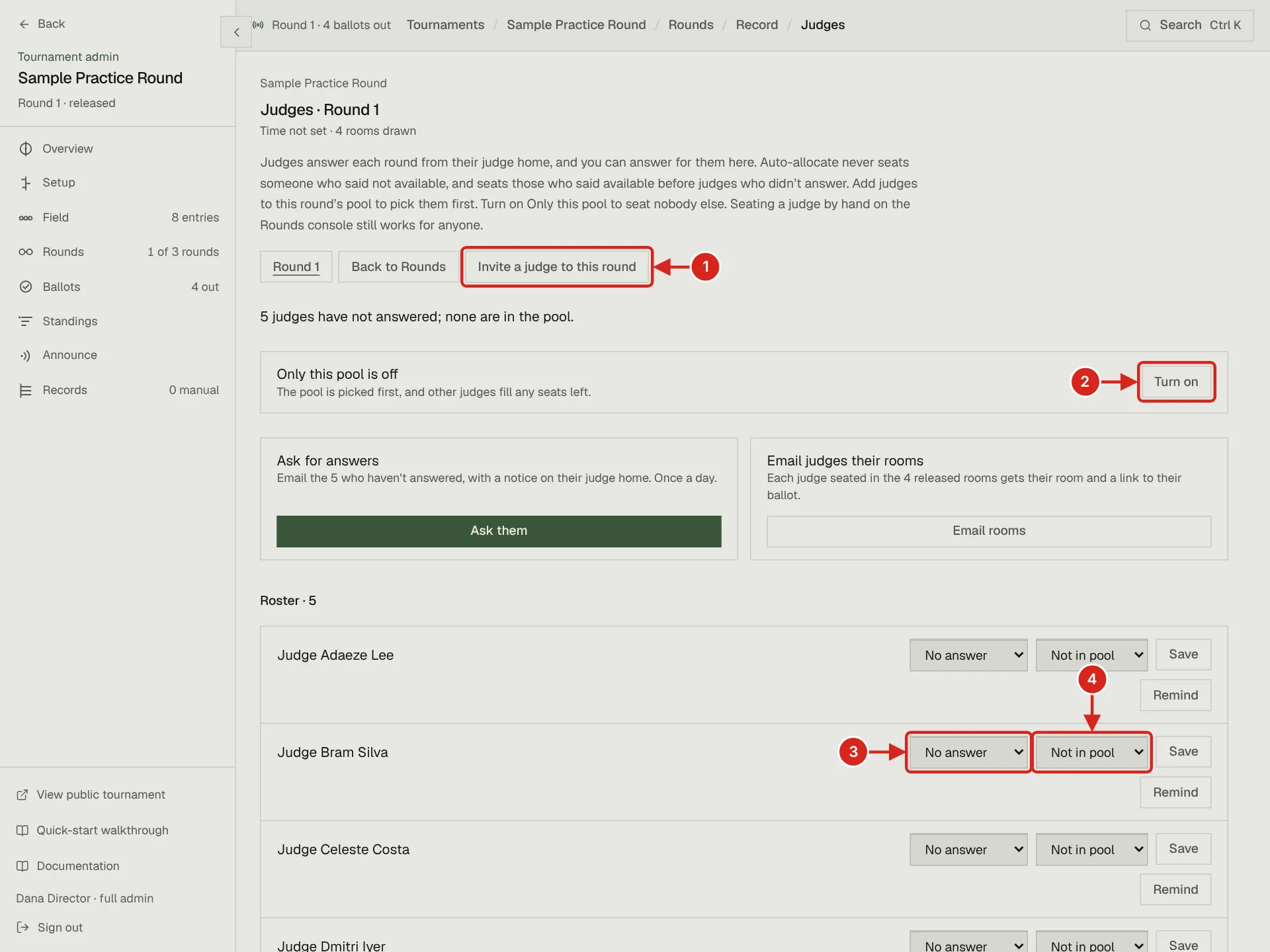
- 1. Invite a judge to this round opens the invitation generator with this round already ticked.
- 2. Turn on Only this pool to keep auto-allocate to the judges in the pool. With it off, the pool is picked first and other judges fill any seats left.
- 3. The judge's answer for this round, which you can set on their behalf.
- 4. The judge's seat in this round's pool: Not in pool, Pool: Chair or Pool: Judge, or Pool: Clerk for a clerk. Select Save on the row to keep both.
- In Rounds, select a round and then Round judges. The page is headed Judges and the round's name, or Bench and the round's name on a moot court round. One sentence under the heading counts the judges who said Available, who said Not available and who have not answered, and how many are in the pool. The buttons along the top open each other round's page.
- For any judge, set their answer on their behalf, and set their seat in this round's pool: Chair or Judge, or Clerk for a clerk. In moot court these read Chief Justice, Justice and Courtroom Clerk. Select Save on the row.
- Turn on Only this pool to have auto-allocate seat nobody outside the pool. It has no effect until the pool holds a judge. Clerks are kept to the pool only when it holds a clerk.
| Judge's answer | What auto-allocate does |
|---|---|
| Not available | Never seats them in that round. |
| Available | Picks them before judges who did not answer. |
| No answer | Can still seat them, after those who said Available. |
Auto-allocate prefers to list a judge named Chair or Chief Justice first in their room, which makes them its chair. The judge sees the seat on judge home. Seating by hand in the room inspector ignores all of this and stays the director's override.
Asking, reminding and emailing rooms
The round's judges page sends three kinds of message. Each is written to Records before it goes, and the wait before the next one counts from that record.
| Button | Who it reaches | How often |
|---|---|---|
| Ask them | Every judge on the roster, clerks included, who is not withdrawn and has not answered this round. Each gets an email and a notice on judge home, both opening the round answers. | Once a day per round. Not after the round starts. The button then reads Ask again with the time left. |
| Remind, on a judge's row | That one judge, the same way. | Once a day per judge and round. The row then reads Reminded and how long ago. |
| Email rooms | After a release, the judges seated in each released room get one email naming their room, with a link to its ballot. | Every fifteen minutes at most. The button then reads Send again with the time left. |
Reminding judges to finish their steps
Field, Judges shows Remind N to finish while any judge who has accepted still has the compliance statement or orientation to do. It sends them one email with a link to their judge page, once a day per tournament. It is sent when a director presses it, not on a schedule. A judge who has not accepted is reached by resending the invitation from Invited.