Atlas / tournament documentation
Coaches
Registering a team from one account, sending claim links, paying, and following the team on the coach screen during the tournament.
A coach is anyone who registers entries for other people from their own account: a school coach, a club leader or a parent registering a team. Atlas has no separate coach sign-up. The account that starts a registration and adds other people to it is the coach for those entries, and it pays for them.
Before you start
- An account. Create one with an email and a password, and confirm the address from the email Atlas sends.
- The tournament page. The director shares it, or find it in the tournament directory. A tournament's link ends in a short form of its name, on the league's own address. A private tournament is not in the directory, and its readable link opens only for an account that already holds a role in it, such as a cart, an entry or a judge place. Anyone else opens it from the link the director shares. An older link with the tournament's long id forwards to the readable one whenever that one would open for you.
- Each student's own email. One email holds one entry per event. A family sharing an inbox can use plus addresses like you+kim@gmail.com.
- A family code, if the league asks for one. See Families and guardians.
Register the team
- On the tournament page, select Register an entry, then Start registration. Your cart opens.
- Under Add registrant, fill Full name, Email, School or club, Role and Event for each person. Role is Competitor or Judge. For a team event, add the partner's name and email. Select Add registrant. When the tournament keeps an affiliation list, School or club suggests its schools as you type, and a name not on the list reads Not on this tournament's list. You can still register, and the director will check the name.
- Entering your own email adds you at once. Anyone else is added as Awaiting claim, with a link to send them. Select Copy link or Email the invite.
- Each student opens the link, signs in or creates an account with the email you entered, and selects Claim my registration. The link works only for that email.
- When the tournament requires it, tick I have read and agree to the tournament rules and safety policy on each claimed entry.
- If you have a promo code, type it under Promo code and select Apply code. The cart shows the discount, and checkout checks the code again.
- Select Checkout. The line above it counts entries that are ready, awaiting claim and need policy acknowledgment. Checkout registers the ready ones; entries still awaiting claim stay in the cart for later.
If the tournament collects fees online, checkout opens Stripe's card page for everything owed. Otherwise the page says the league collects the fee and how to contact it. Entries are registered either way. When there is a fee, the cart states the tournament's refund rule under the entries, the same sentence the Withdraw panel opens with. See Payments.
Change the team before the day
- Add more people. Return to Register and add them to the same cart, then check out again.
- Remove someone not yet checked out. Select Remove beside them in the cart.
- Withdraw a registered entry. Before the first draw, open the coach screen and select Withdraw an entry. After a draw, the band offers Withdraw from the next round while an entry is not checked in; otherwise ask the tab room. Tick the entries and confirm. The panel states the tournament's refund policy; any refund is made by the director. An entry in a room under way is withdrawn by the tab room instead.
- Pay what is still owed. The register page shows the total and Pay now.
The coach screen
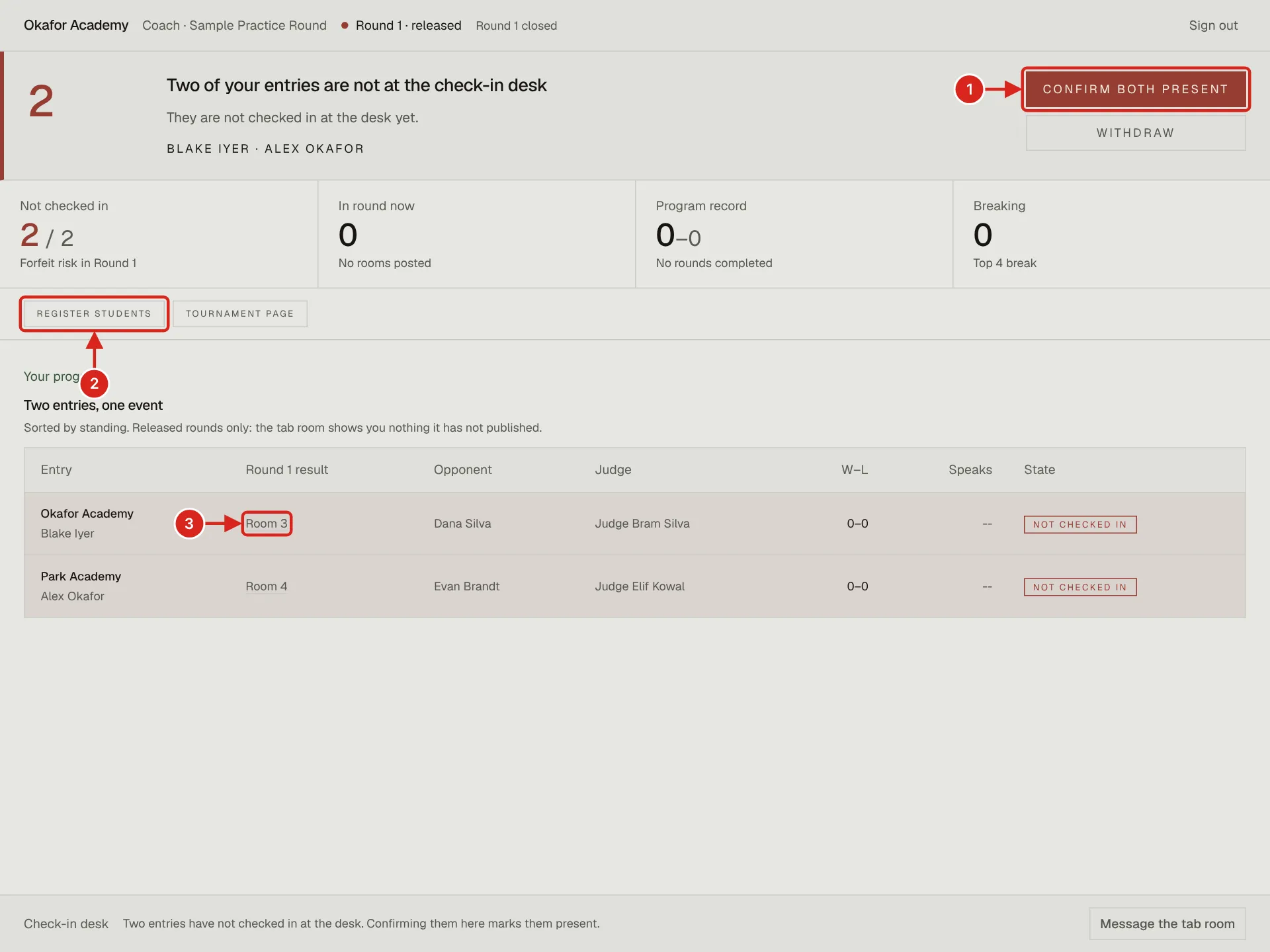
- 1. The band names the one thing that needs you. Here two entries are not checked in, so it offers Confirm both present and Withdraw.
- 2. Register students opens the tournament's registration with your cart.
- 3. Each entry's room, once the round is released. Select it to open the room page.
The coach screen opens from the tournament's page in the tournament directory. It shows only your own entries, and only what the tab room has released.
| Part | What it shows |
|---|---|
| The band at the top | The one thing that needs you now, such as entries not checked in or at forfeit risk, with buttons for it. It reads Nothing needs you when nothing does. |
| Figures | Entries, checked in, the program's win and loss record, and who is inside the break once standings are published. |
| Quick links | Register students, the bracket when there is one, and the tournament page. |
| Your program | One row per entry: the current room or last result, opponent, judge, record, speaks and state. Entries that need you sort to the top. For a guardian whose entries are their own family's, the screen reads as a guardian's: Guardian in the kicker, and Your family, or the family's name, in place of Your program. |
| Check-in desk | Message the tab room, which opens your mail app addressed to the tournament's contact. |
How the coach screen works
- Which entries are yours. The screen lists every entry in carts your account owns, including one you typed under your own email for a child who has none. The one entry it leaves out is your own: an entry under your email in your own name that is not a family member's. You do not coach yourself, so it does not appear here and the coach buttons cannot touch it.
- Only what is released. Rooms, opponents and judges appear when the tab room releases the round, never from a draft. Results appear as judges submit; speaks and standings follow what the tab room publishes.
- Before check-in opens. Until the first round is drawn the band reads No round is drawn yet. Check-in is not open. Once it is open, each entry shows Checked in or Not checked in.
- Confirm present marks the chosen entries checked in. It works only on an online tournament with check-in open. At an in-person tournament the screen answers: This tournament checks people in at the desk. The tab room marks your entries present when they arrive.
- Withdraw takes the chosen entries out of future rounds and shows them to the tab room on the roster. It refuses an entry paired in a released room with no result yet; the tab room drops that one from its desk. Withdrawing never forfeits a room by itself.
- When nothing can change. Once the roster is frozen, the screen says to ask the tab room. Once the tournament is over, it says there is nothing left to change.
- Nobody else can act as you. The buttons act for the signed-in account only. A director previewing your screen sees it but cannot press anything as you.
On the day
- Bring your students to the check-in desk. On an online tournament that allows self check-in, select Confirm present on the coach screen instead.
- When a round is released, each entry's room, side, opponent and judge appear on the coach screen and on the tournament page.
- If a student is late or missing, select Message the tab room.
- To question a result, the student opens their room page and files a dispute. See Students.
When something goes wrong
| What you see | What to do |
|---|---|
| This tournament's registration is invite-only, and your email hasn't been approved yet. | The page names your email. Ask the director to add it to the invite list. |
| Registration for this tournament is closed | Your registered entries still stand. Ask the director about a late entry. |
| An entry stays Awaiting claim | Send the link again. The student must sign in with the exact email you entered. |
| Checkout is greyed out | At least one claimed entry is needed, and every claimed entry needs the policy acknowledged. |